
Zendia is a self-improvement platform that blends journaling, to-do lists, wellness tracking, and AI to drive meaningful, measurable personal progress.
Reminders are essential for keeping track of your goals and everyday events. Here are some quick instructions for making changes and adding custom reminders to your daily activities.
When you schedule an event, and the time changes, or you want to change the notification, you can do that quickly from the Snap Journal page.
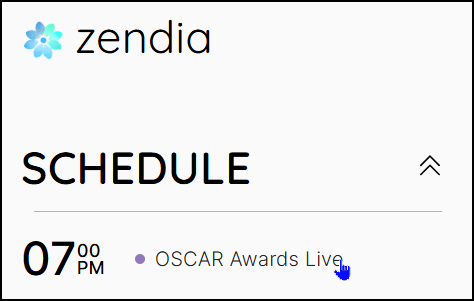
To change the settings of an event:
1. In the Schedule section, click the event you want to manage. The Edit Event box displays,
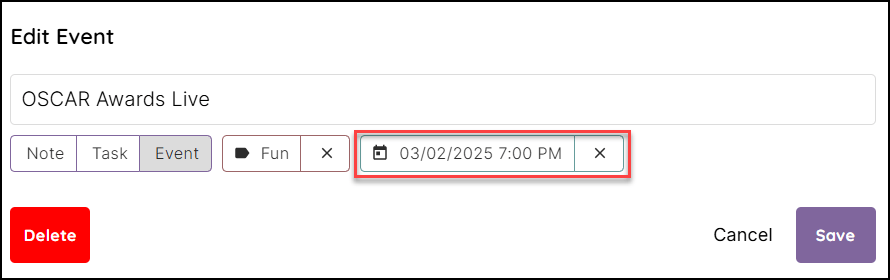
2. Continue based on the type of change you need to make:
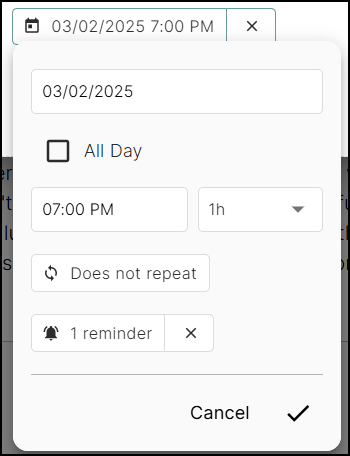
3. When your reminder changes are complete, choose Save.
Custom Reminders are an excellent way to add content to your journal when you think of something you have to ask someone or want to remind yourself of something in the future. These Reminders can include items you need to pick up on your way home or questions you want to ask your boss in your meeting. These are the kind of Reminders that strike you when it is really inconvenient to write it down.
Adding a custom reminder is very quick and easy in Zendia.
To add a custom reminder:
1. From the Menu column, click the Menu icon and choose Manage Reminders.
2. Click the Add Reminder icon. The Custom Reminder box displays.

3. Enter the reminder text and select the day and time in the fields provided.
4. Select the Email check box to send this reminder to your Zendia login address.
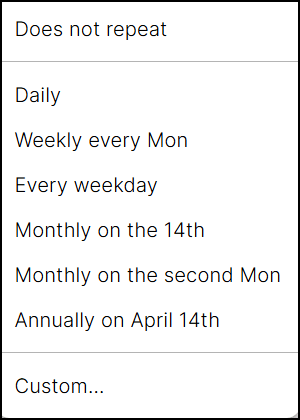
5. To repeat this message, click the Does not repeat icon and choose the notification option that works for this reminder.
6. Choose the Save button to save the reminder.
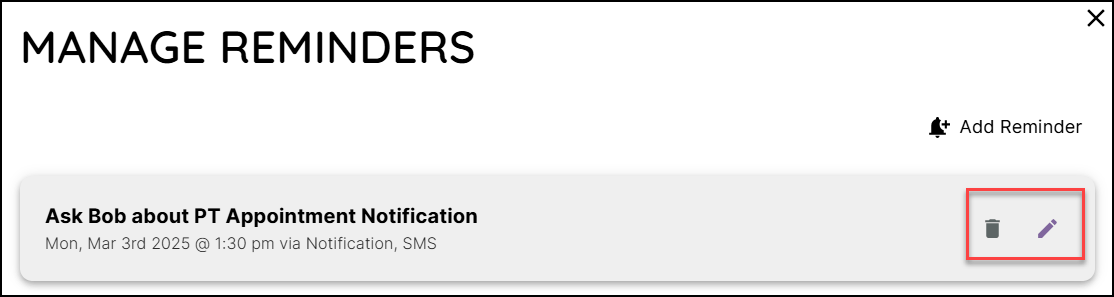
Note: You can delete or change this reminder using the Delete and Edit icons.